
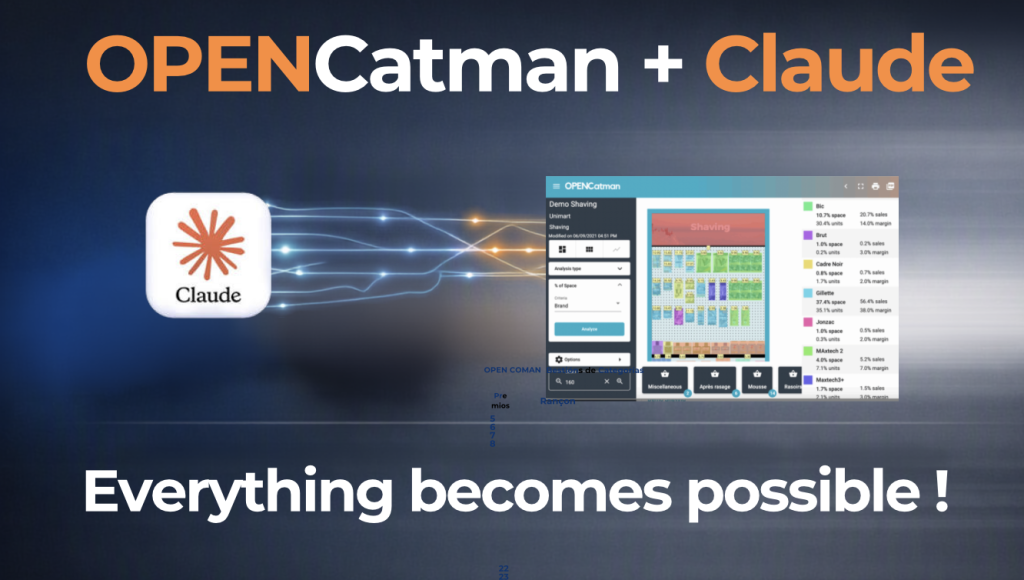
Until now, for an AI like Claude to help with your category, you had to copy and paste data by hand: export an Excel file, describe a planogram, explain which products sit on each shelf. OPENCatman’s MCP connector removes that whole middle step.
Once connected, Claude can read your projects, your product catalog and the structure of your planograms in OPENCatman directly, and — whenever you explicitly ask it to — modify them: reclassify a category, move a product to another shelf, adjust facings. It can also distribute products across an entire planogram, either from a product selection or from a photo or video taken in the store, and use the KPIs provided by OPENCatman to optimize one or several planograms at the same time. All from a normal conversation, without leaving the chat.
This guide explains what the MCP connector is, how to connect it in under five minutes, and — for anyone who needs to approve it from IT — exactly what data it touches and under what conditions.
What is the MCP connector?
MCP (Model Context Protocol) is an open standard that lets an AI assistant like Claude connect securely to an external application — in this case, OPENCatman — to read and, if the user authorizes it, modify real data in their account. This isn’t a generic integration: it’s OPENCatman’s own connector, published and maintained by OPENCatman, which each user connects to with their own credentials.
How to connect your Claude account to OPENCatman
You’ll need an active Claude.ai account and an active OPENCatman account with access to the “Client ID” section of your user profile.
- Open Claude’s Settings. Sign in to claude.ai, open the sidebar, click your username (bottom left) and select “Settings”.
- Add a custom connector. Inside Settings, go to “Connectors” (under “Customize”), click “Add” and choose “Add custom connector”.
- Fill in the name and server URL. Type “OpenCatman” as the name and paste this URL into the “Remote MCP server URL” field:
https://www.opencatman.com/corporate-api/mcp - Get your credentials from OPENCatman. In another tab, open your OPENCatman user profile and find the “Client ID” section. There you’ll find your Client ID and Client Secret — copy both.
- Paste the credentials into Claude. Back in Claude’s form, expand “Advanced settings” and paste the Client ID into “OAuth Client ID” and the Client Secret into “OAuth Client Secret”. Click “Add”.
- Connect and activate. The connector will be created but not yet connected: click “Connect” to authorize access. Then, in any new chat, click the “+” button next to the message field, go to “Connectors” and turn on “OpenCatman”.
Important: the Client Secret is shown in full only once. If you lose it, you can generate a new one with the “Regenerate Client Secret” button — this automatically invalidates the previous one.
From here on, Claude can work with your OPENCatman account. The first time you ask for a specific action (for example, opening a project), it will ask for authorization to use that particular capability, with three options: allow once, allow always, or deny. You decide, capability by capability.
What you can ask Claude once connected
Some real examples of what you can type in the chat:
View and organize projects
- “Show me my projects”
- “What’s in the [name] folder”
- “Open the [name] project and tell me how it’s set up”
- “Duplicate the [name] project and call it [new name]”
Search and check products
- “Search ‘[word]’ in my catalog (brand, product type, category)”
- “Give me the full info (price, stock, sales) for product [UPC]”
- “Group these products by brand”
Change categories
- “Change the category of to [category > subcategory]”
- “Reclassify these products: [list]”
Build and modify the planogram
- “Place product [X] on shelf [Y]”
- “Remove product [X] from the shelf”
- “Put 2 facings of product [X] on that shelf”
- “How much free space is left on shelf [Y]?”
Build a planogram from scratch
- “Build the planogram with this list of products”
- “Build the planogram from this photo of the shelf”
- “Distribute these products in the planogram based on this video of the store”
Optimize with OPENCatman’s KPIs
- “Optimize this planogram using OPENCatman’s KPIs”
- “Optimize these 3 planograms at the same time”
- “Which of these two planograms performs better according to the KPIs?”
Tip: the easiest way to start is by asking “show me my projects” to see which one you want to work on, and then refine your request from there.
Security and the data the connector accesses
This section is meant for whoever has to evaluate and approve the connector from the company’s IT or security team.
Authentication. The connector uses OAuth 2.0. Credentials (Client ID and Client Secret) are generated per user from their own OPENCatman profile — they are not shared or fixed, and they are not equivalent to the account password. At no point in the process is the OPENCatman password entered into Claude.
Transport. Communication between Claude and OPENCatman travels over HTTPS to OPENCatman’s remote MCP server.
Access scope. The connector only accesses data belonging to the OPENCatman account of the user who authorized the connection: their projects, their product catalog, the structure of their planograms, and their sales data. There is no access to data from other accounts or other OPENCatman customers.
Granular consent. Claude doesn’t perform actions silently. The first time it needs to use a specific capability (reading a project, changing a category, repositioning a product), it explicitly asks the user, who can authorize it once, authorize it permanently, or deny it.
What kind of actions it can perform. Broadly: read actions (viewing projects, products, sales, space analysis) and write actions, always under the user’s explicit request (reclassifying a product’s category, changing its position or facings within a planogram, duplicating a project, distributing products into a new planogram from a selection or a photo/video, and optimizing one or several planograms at once using OPENCatman’s KPIs). There are no billing actions, user management actions, or account configuration actions exposed through the connector.
Reversibility. Access can be revoked at any time from two places: disconnecting the connector from Claude’s settings, or regenerating the Client Secret from the OPENCatman profile (which immediately invalidates the previous credentials).
Quick reference for IT
| Aspect | Detail |
| Protocol | MCP (Model Context Protocol) over HTTPS |
| Authentication | OAuth 2.0, with a Client ID / Client Secret unique to each user, generated from OPENCatman |
| Passwords | The OPENCatman password is never entered into Claude |
| Data scope | Only the data belonging to the authenticated user’s OPENCatman account (projects, products, planograms, sales) |
| Consent | Per capability, the first time it’s used, with the option to allow once, allow always, or deny |
| Write actions | Only under the user’s explicit request (categories, product position, facings, duplicating projects, building planograms from a product selection or photo/video, KPI-based optimization) |
| Revocation | Immediate, from Claude (disconnect the connector) or from OPENCatman (regenerate the Client Secret) |
| MCP server URL | https://www.opencatman.com/corporate-api/mcp |