
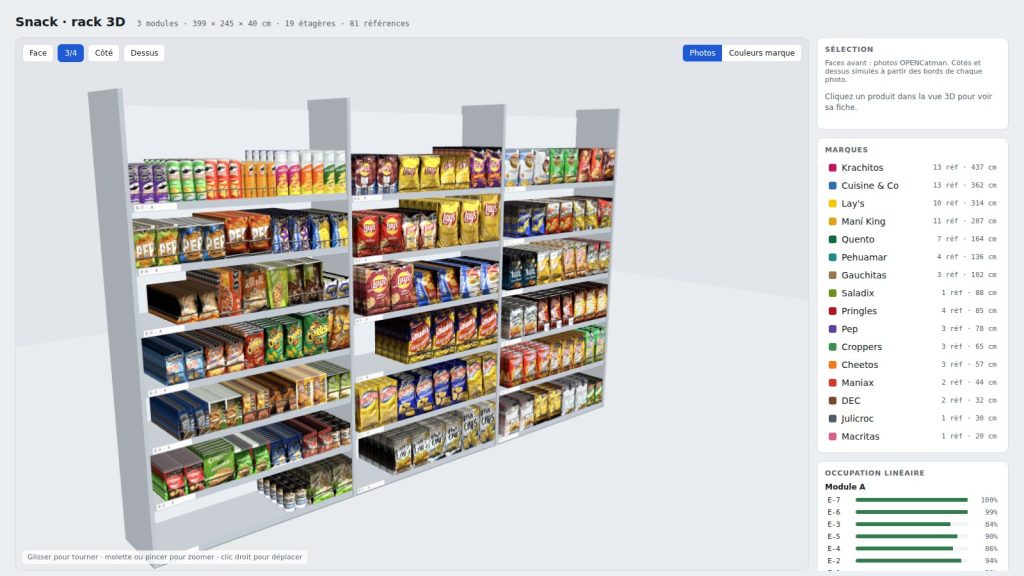
A 2D planogram tells you where each product goes. But to win over a store manager, a supplier or your own team, nothing beats a view that looks like the real shelf: packs in volume, shelf depth, brands that stand out.
With Claude connected to OPENCatman, you can now turn any planogram into an interactive 3D view, with your real product photos, in a single request. And we’re sharing the skill that does all the work.
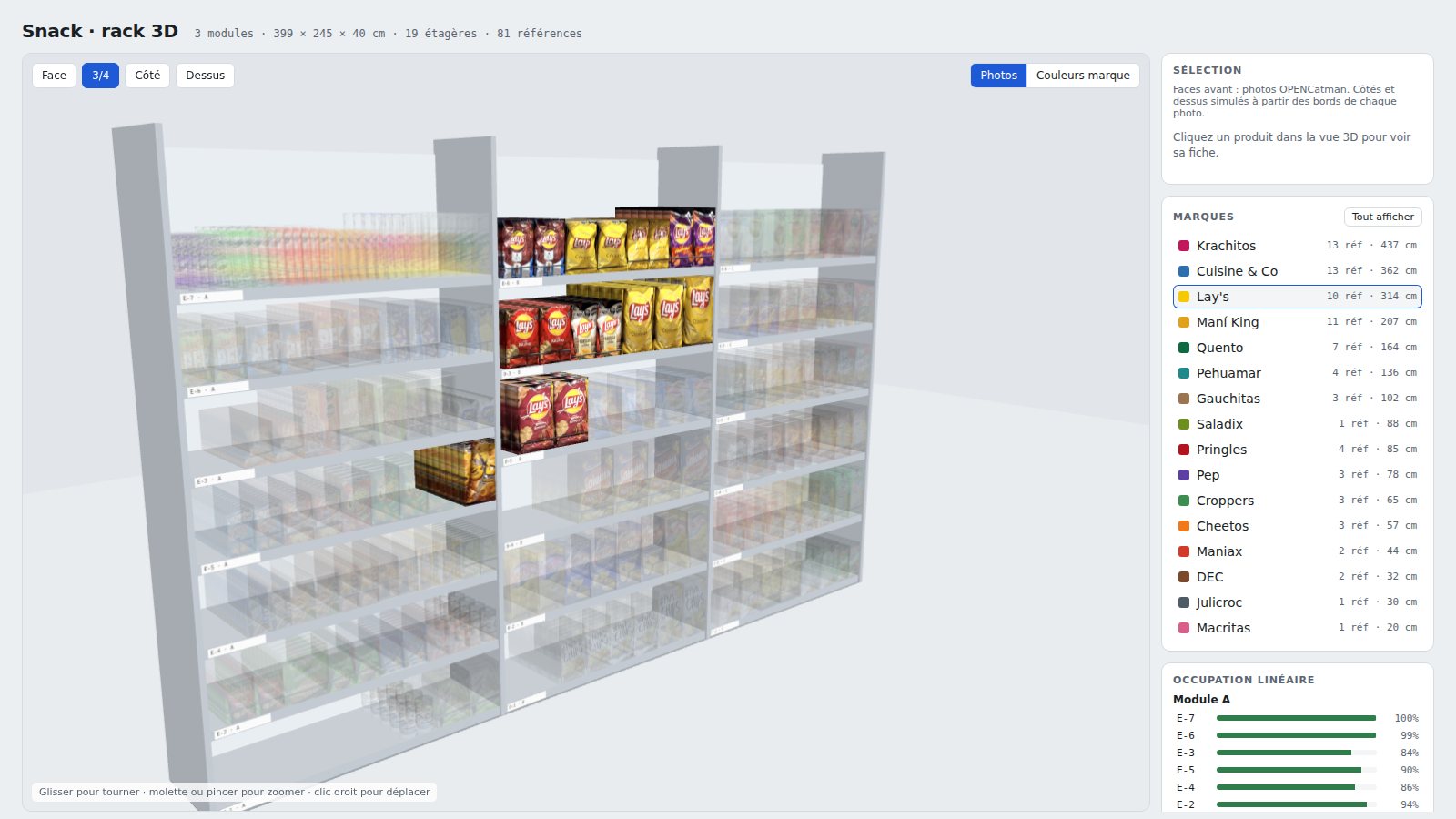
Above: a 3-module snack gondola with 19 shelves and 81 SKUs, generated in 3D from OPENCatman.
🧊 What you get
Claude reads your OPENCatman project (modules, shelves, positions, facings, dimensions of each product) and builds a 3D web page you can rotate, zoom and share with a simple link.
- Products at real scale, with their facings and number of rows in depth.
- The front photo of each product, as stored in OPENCatman.
- Simulated sides and tops built from the edges of each photo, for a realistic volume.
- Tubes and jars as cylinders (chip tubes, jars), with the photo wrapped around.
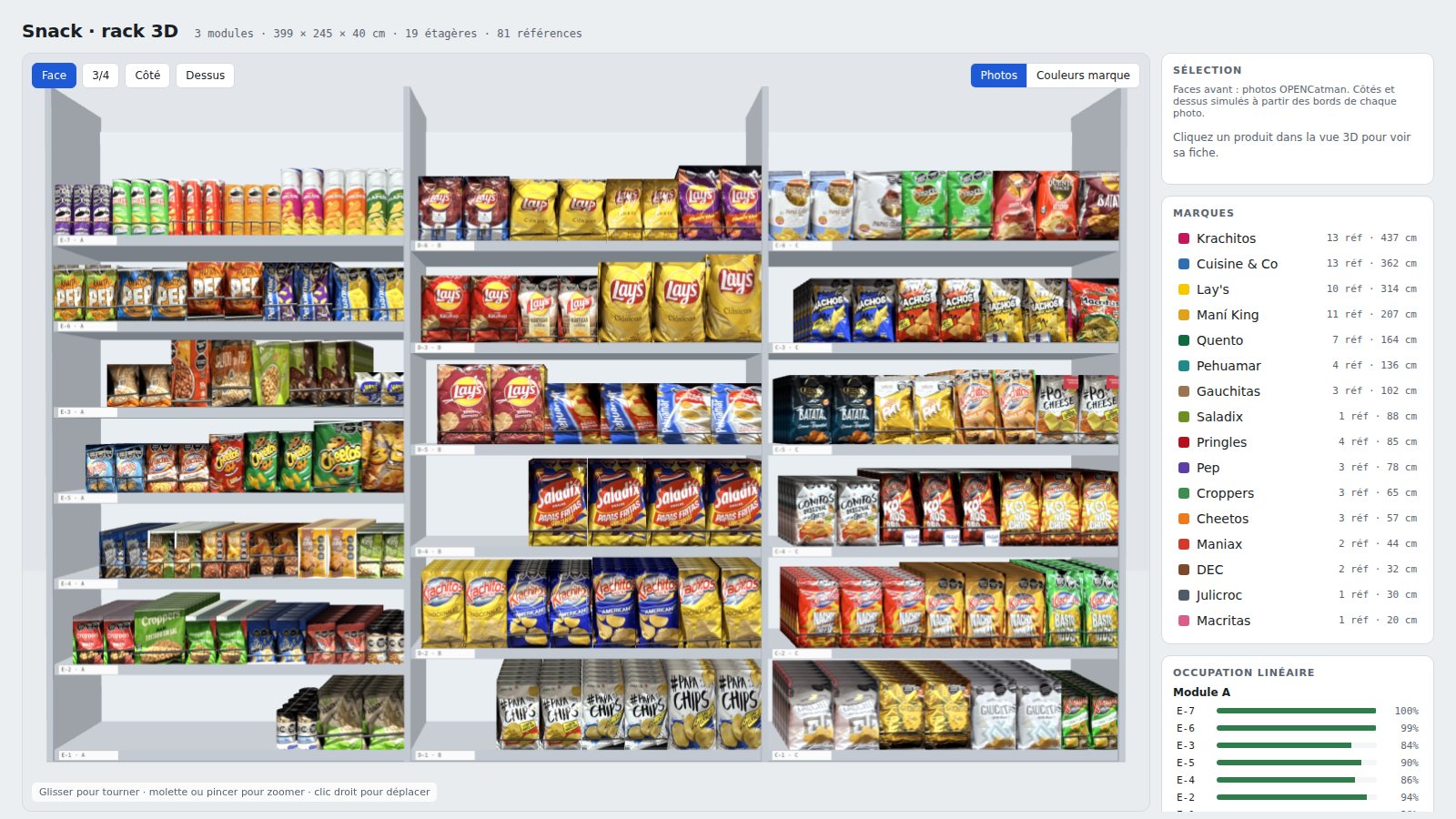
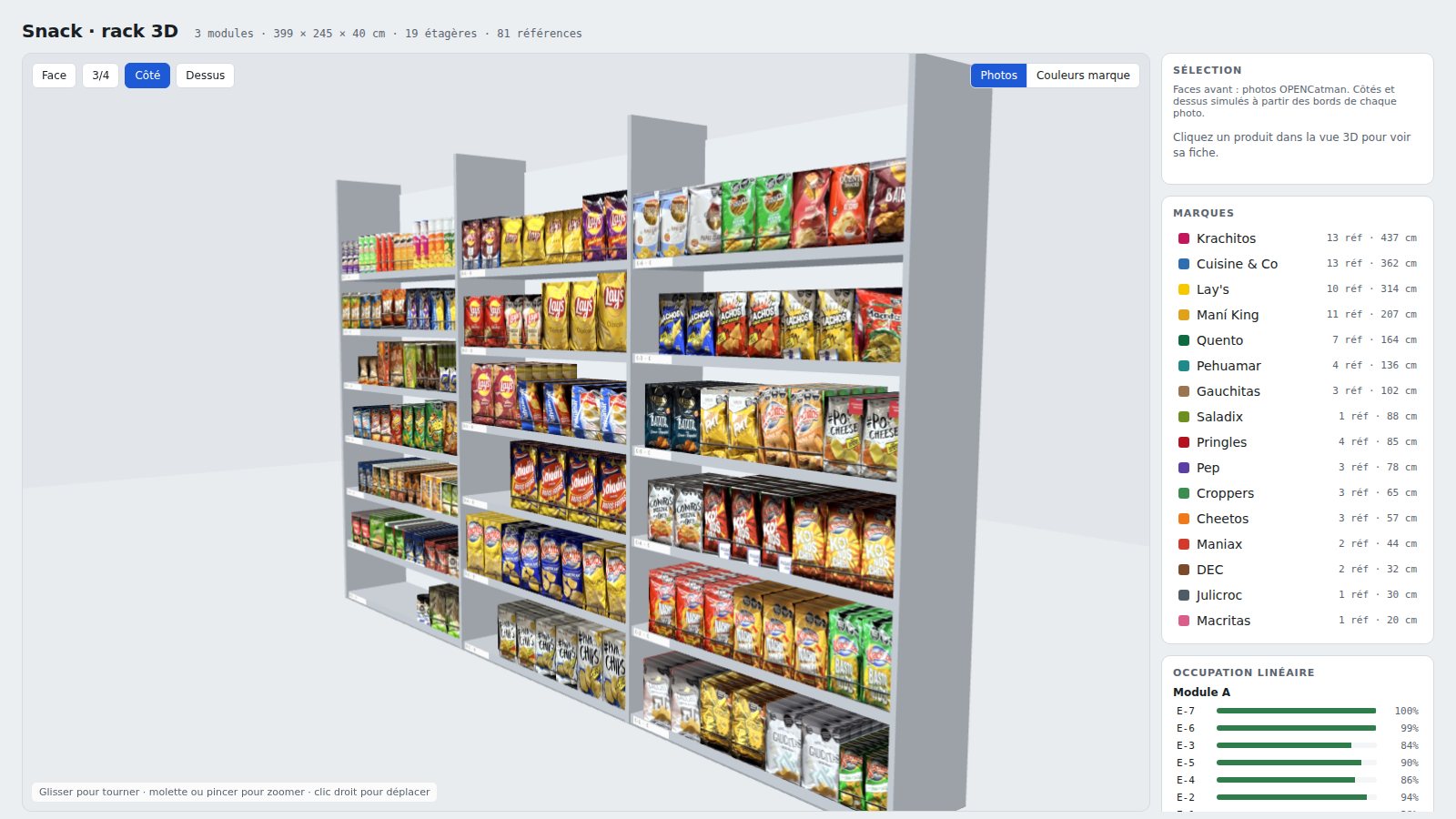
- Four viewpoints in one click: front, 3/4, side and top.
🔍 Using the 3D planogram
Moving around the shelf
Drag to rotate the shelf, use the mouse wheel (or pinch on mobile) to zoom, and right-click to pan. The Face, 3/4, Côté and Dessus buttons (front, 3/4, side and top) bring the camera back to the key views.
Opening a product card
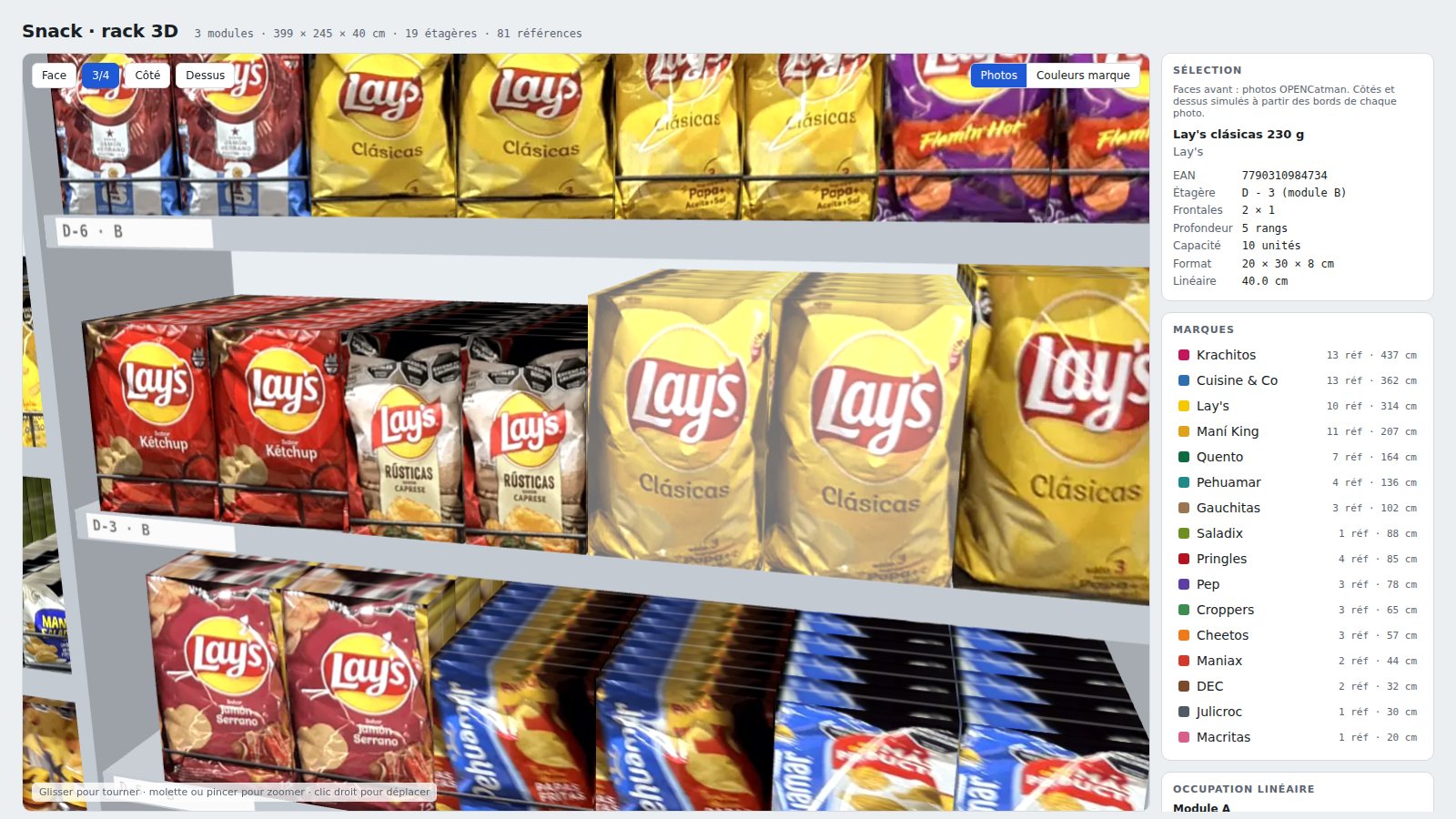
Click a product to open its card: EAN, shelf, facings, number of rows, capacity in units, format and linear space used. In the linear occupancy panel, clicking a shelf zooms straight onto it, and shelves less than 80% full are flagged in orange.
Isolating a brand
Click a brand in the legend: all the others become transparent. It’s ideal for showing a supplier where their SKUs are and how much space they take. The legend also shows each brand’s number of SKUs and centimeters of shelf space.
Switching to brand colors
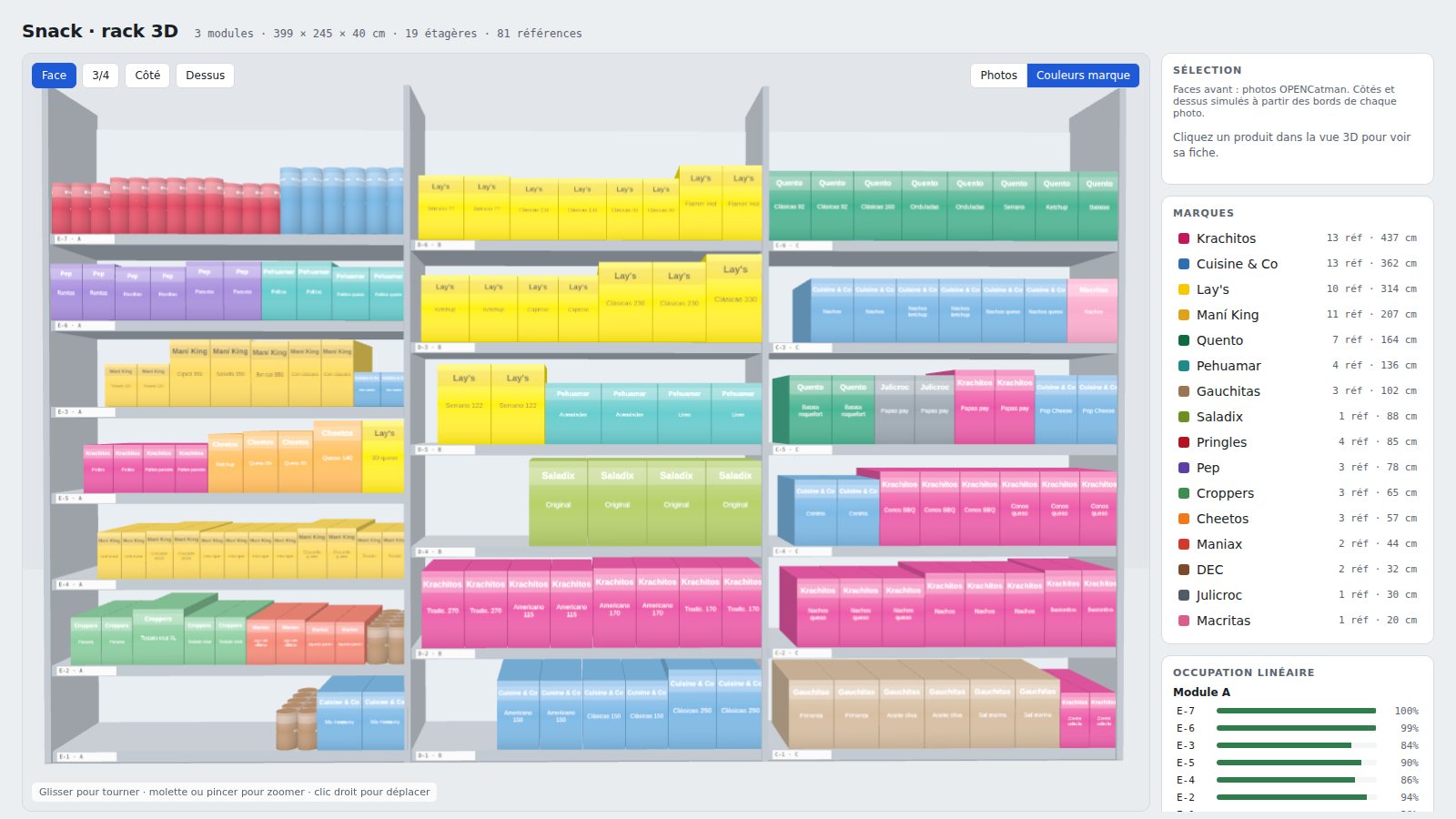
The Couleurs marque button replaces the photos with one flat color per brand, so the brand blocks and the balance of the shelf stand out at a glance.
⚙️ What you need
- An OPENCatman account with your planogram (and your product photos).
- Claude with the OPENCatman connector enabled. If you haven’t done it yet, follow our MCP connector guide.
- The Claude desktop app in Cowork mode and the Claude in Chrome extension, signed in to OPENCatman: it retrieves the product photos.
- Code execution enabled in Claude (Settings > Capabilities).
📥 Installing the skill
A skill is a “recipe” Claude follows step by step. This one contains the whole method: reading the project, retrieving the photos, simulating the sides, building the 3D page and publishing it.
- Download the .zip file above, without unzipping it.
- In Claude, open Customize > Skills.
- Click +, then Create skill and Upload a skill.
- Select the .zip file. The opencatman-planograma-3d skill appears in your list, enabled.
🚀 Turning your planogram into 3D
- Open your planogram in OPENCatman.
- In Claude, simply ask: “Turn my planogram [project name] into 3D”.
- Claude reads the project, opens the planogram in Chrome to retrieve the photos and asks your permission to save the image file to your Downloads.
- A few minutes later, the 3D view opens. You can share it by link from the Share menu.
If Claude has no access to the browser, the skill still generates the 3D view, using brand colors instead of photos.
💡 Good to know
- The 3D view is a snapshot of your planogram at the time it’s generated. After a change in OPENCatman, just ask Claude to regenerate it.
- Since the photos come from OPENCatman, their sharpness depends on those in your library. Up close, they may look slightly blurry.
- Product sides are simulated: they add volume but don’t reproduce the real packaging.
- The 3D view interface is in French by default; you can ask Claude to generate it in English.
Try the interactive demo, then give it a go with your own planograms. Let us know what you think!